Will a Samsung Monitor Fit Your Desk and Existing Laptop?
Check desk dimensions, laptop connections and essential accessories before choosing a Samsung monitor and comparing the full setup cost.
On this page
A larger monitor can make a laptop workspace easier to organise, but the screen price is only part of the purchase. A stand that takes over your desk or a connection that needs extra equipment can turn an apparent bargain into an awkward upgrade. Start with the space and laptop you already have before choosing a Samsung model.
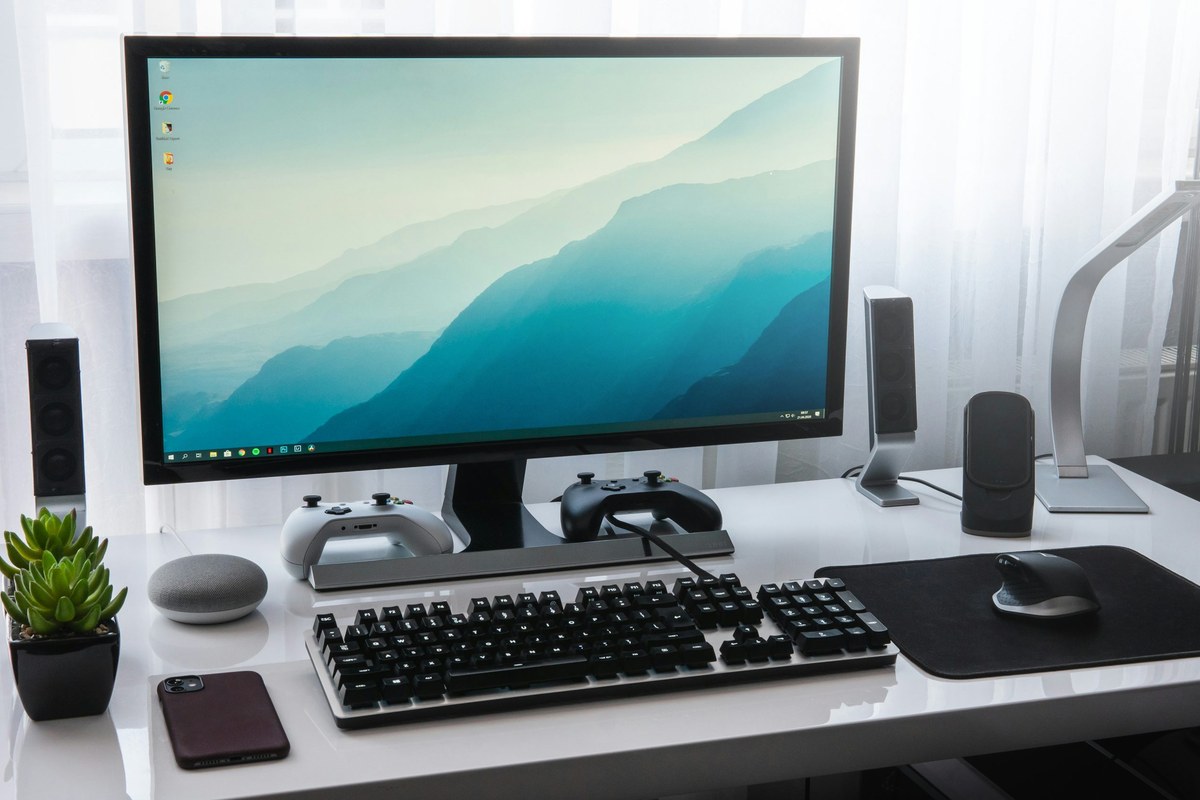
Measure the space the whole monitor will occupy
Samsung explains that screen size is measured diagonally. That advertised measurement does not tell you the width of the casing or the depth of the stand. Two monitors with similar screen sizes can therefore need different amounts of desk space.
Look for the selected model’s dimensions with its stand. Mark the footprint on your desk using paper, then put your keyboard, mouse and open laptop where you normally use them. Leave room for the cables behind the screen, and check whether a shelf above the desk restricts its height.
Do this before deciding that an ultrawide display is the answer to cramped working conditions. Samsung’s buying guidance also highlights viewing distance and available desk space. A monitor which fits physically may still leave too little room for your notebook or other everyday work.
Check the laptop end of the connection first
Write down the exact laptop model and check its manufacturer’s display-output specifications. Then compare those with the monitor’s inputs. Do not order a cable merely because its connectors appear to fit: confirm that the laptop, cable and any adapter support the intended display resolution and refresh rate.
If you want a USB-C connection, check the documented video-output capability of the laptop port and the monitor’s stated functions. Treat charging as a separate requirement to verify. A single-cable arrangement is only useful if the particular equipment supports everything you need.
Make a short list of what is already in the box and what you must buy separately. If an adapter or dock is required, include its cost before comparing monitor prices. For a work-issued laptop, ask your IT team which connections and accessories it supports before spending your own money.
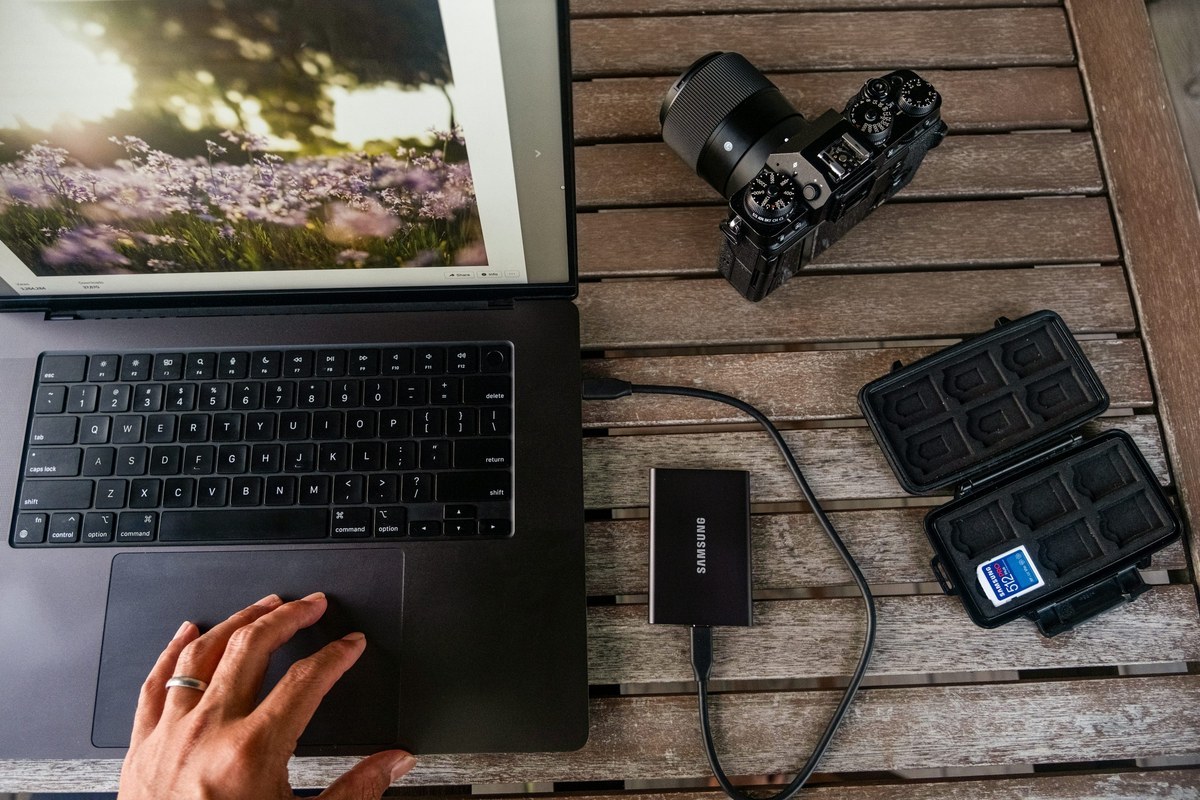
Pay for features you will use
List the two or three tasks the new screen should improve. Reading documents beside a spreadsheet creates a different shopping brief from playing games or editing photographs. Use that brief to choose which specifications matter, rather than paying for every feature on the product page.
Check adjustable height, speakers and other practical details individually. If something important is missing, calculate the cost and space required for the alternative. Do not assume that adding a monitor arm will solve a poor fit: the monitor mounting specification, arm limits and desk attachment all need checking.
Compare the complete working setup
Once a model passes those checks, review the Samsung discount code page and read any relevant offer conditions. Availability and eligibility must be checked; a listed promotion is not a guarantee of a reduction on your chosen monitor.
Currys is a useful comparison for the same PC-monitor buying task. Match the complete model number, included accessories and seller, then check the Currys discount code page if an applicable offer is listed. Compare the monitor, necessary cables or adapters and delivery together.
Before paying, confirm the delivery arrangements and return conditions for the specific seller. Keep your measurements and compatibility notes with the order confirmation. The better-value purchase is the setup that meets your needs within budget without an unplanned second round of accessories.